Creating a 2BHK (Two Bedroom Hall Kitchen) floor plan in AutoCAD is an essential skill for any budding architect or interior designer in India. This tutorial will guide you through drawing a basic 2BHK layout using AutoCAD, a powerful tool for design professionals. By the end of this tutorial, you'll have a clear understanding of how to set up your workspace, draw and modify walls, add doors and windows, and finally label your floor plan according to standard practices. Whether you're preparing for a client presentation or a design project, mastering these basics will provide a solid foundation for your future work.
What You'll Need
- Software: AutoCAD 2024 (available for approximately ₹15,000 per year)
- System Requirements: Windows 10 or later, 64-bit processor, 8GB RAM (16GB recommended), 1GB GPU (2GB recommended)
- Files: None required, but a sketch of your desired layout will be helpful
- Skill Level: Beginner

Setting Up Your Workspace
- Open AutoCAD 2024: Launch the software by clicking on its icon on your desktop or searching for it in your start menu.
- Start a New Drawing: Go to the menu and click on
File → New → Drawing. This will open a new blank canvas. - Set Units: Type
UNITSin the command line and pressEnter. A dialog box will appear. ChooseDecimalfor Type andMillimetersfor Insertion Scale. ClickOK. - Set Grid and Snap Settings: Type
DS(Drafting Settings) in the command line. Under theSnap and Gridtab, ensureGrid OnandSnap Onare checked. SetGrid X and Y Spacingto 1000 mm for a clearer view. ClickOK. - Save Your Work: Save your drawing by clicking
File → Save As. Name your file "2BHK_FloorPlan" and choose a location on your computer. PressCtrl+Sregularly to avoid losing work.
Pro Tip: Use
Ctrl+1to quickly access the Properties panel for any selected object, allowing you to adjust details without hunting through menus.
Drawing the Walls
- Draw the Outer Walls: Select
Linefrom the toolbar or typeLand pressEnter. Click on the canvas to start your line, then type10000(for 10 meters, a common wall length in Indian apartments) and pressEnter. Repeat to create a rectangle representing the outer walls.- Sub-step: Ensure that each corner of the rectangle snaps correctly to form a closed loop. Use
OSNAP(Object Snap) settings to assist with precision.
- Sub-step: Ensure that each corner of the rectangle snaps correctly to form a closed loop. Use
- Offset for Wall Thickness: Type
OFFSETand pressEnter. Enter230(standard wall thickness in mm). Click on a line, then click inside the rectangle to offset all walls.- Sub-step: Check that the offset lines are continuous and form a closed boundary.
- Trim Unnecessary Lines: Use the
TRIMcommand by typingTRand pressingEnter. Click on the lines you want to remove where walls intersect incorrectly. - Draw Internal Walls: Use the
Linetool again to draw internal walls, referencing your sketch. UseOFFSETto create parallel walls where needed.- Sub-step: For a typical 2BHK, consider the layout of two bedrooms, a hall, and a kitchen. Ensure that internal walls are aligned with the outer walls.
Pro Tip: Use the
F8key to toggle Ortho mode, which restricts cursor movement to horizontal or vertical, helping you draw precise lines.
Adding Doors and Windows
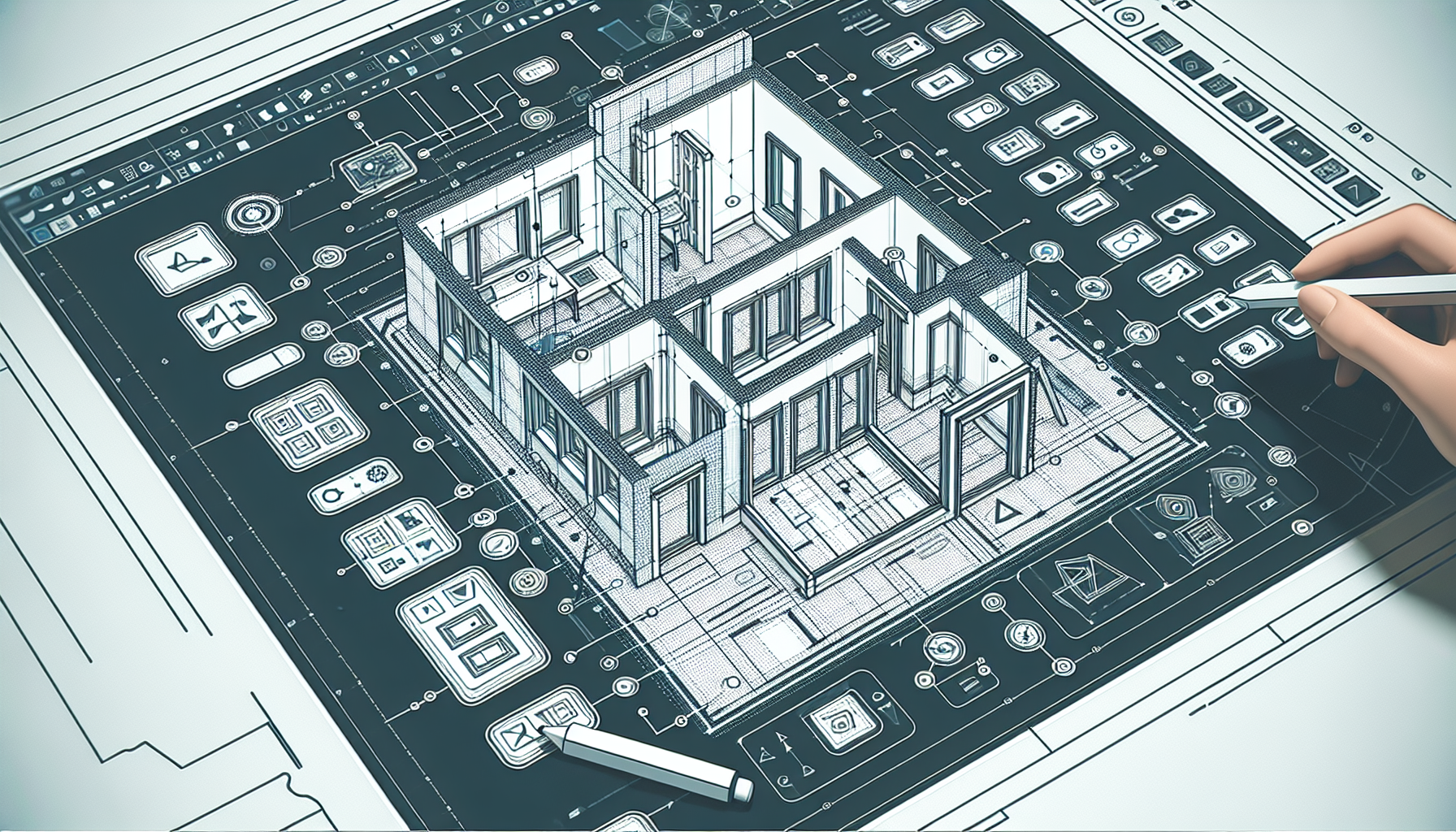
- Draw Door Openings: Type
RECTANGLEand pressEnter. Click to start the rectangle on the wall where you want a door. Enter900, 2100for a standard door size in mm.- Sub-step: Ensure the door opening is aligned with the wall and adjust using the
MOVEcommand if necessary.
- Sub-step: Ensure the door opening is aligned with the wall and adjust using the
- Position Doors: Use the
MOVEcommand (typeMand pressEnter) to position the door openings accurately within the walls.- Sub-step: Consider the swing direction of doors and ensure they do not obstruct pathways.
- Draw Windows: Use the
LINEcommand to draw window lines on the walls. A standard window might be1200mm wide.- Sub-step: Place windows at appropriate heights and positions to ensure adequate ventilation and lighting.
- Copy and Mirror: Use
COPY(typeCO) to duplicate windows, andMIRROR(typeMI) to flip them across a selected axis for symmetrical layouts.
Pro Tip: Use the
LAYISOcommand to isolate layers, making it easier to work on specific elements like doors and windows without distraction.
Labeling Your Floor Plan
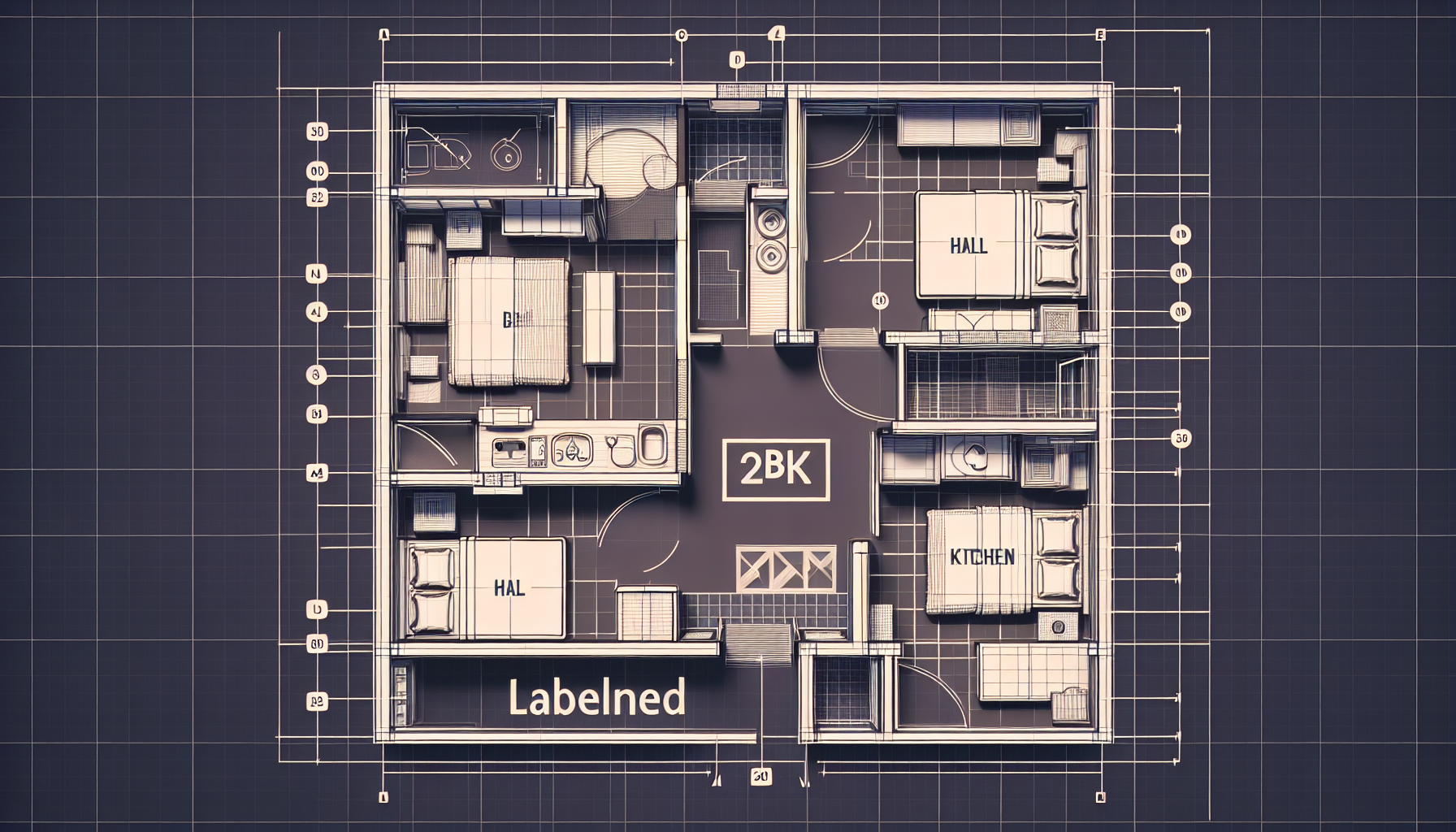
- Create Text Labels: Select the
Texttool from the toolbar or typeTEXTand pressEnter. Click to place text labels for each room (e.g., "Bedroom 1", "Kitchen").- Sub-step: Use a consistent font and size for all labels to maintain uniformity.
- Set Text Size: In the text dialog, set the height to
250mm for readability. Adjust as needed based on your drawing scale. - Dimensioning: Use the
DIMLINEARtool to add dimensions. Click on the start and end points of walls to display their lengths.- Sub-step: Ensure dimensions are placed outside the floor plan to avoid clutter.
- Use Layers for Organization: Type
LAYERand pressEnter. Create layers for walls, doors, windows, and text. Assign colors to each layer for clarity.- Sub-step: Lock layers that are complete to prevent accidental modifications.
Pro Tip: Use
Ctrl+2to open the Design Center, where you can drag and drop pre-made blocks like furniture, saving time on repetitive tasks.
Finalizing and Exporting Your Plan
- Check for Errors: Zoom in and out using the scroll wheel to ensure all elements align correctly and there are no gaps in the walls.
- Sub-step: Use the
AUDITcommand to check for and fix any errors in the drawing.
- Sub-step: Use the
- Apply a Title Block: Insert a title block by typing
INSERTand selecting a pre-made template. Fill in your project details.- Sub-step: Ensure the title block includes essential information such as project name, date, and designer's name.
- Export as PDF: Go to
File → Export → PDF. Choose a location to save your file. This format is ideal for sharing with clients or printing.- Sub-step: Review the PDF to ensure all elements are visible and correctly formatted.
- Review and Save: Double-check everything, then save your final work (Ctrl+S / Cmd+S).
Pro Tip: Create a custom template file with your preferred settings and title blocks to streamline future projects.
Common Mistakes to Avoid
- Forgetting to Save Regularly: Always save your work (Ctrl+S / Cmd+S) to prevent data loss. Consider setting up AutoSave in AutoCAD.
- Incorrect Units: Double-check that your units are set to millimeters to avoid scaling issues. Use
UNITSto verify settings. - Misaligned Walls: Use Ortho mode (F8) to ensure perfect alignment of walls. Check intersections for accuracy.
- Overlapping Elements: Carefully check for overlapping lines or misaligned doors and windows. Use
OVERKILLto clean up duplicate lines. - Ignoring Layer Management: Failing to use layers can lead to a cluttered and confusing drawing. Always organize elements into appropriate layers.
What's Next
- Learn Advanced Layer Management: Discover how to use layers more effectively for complex projects, including layer states and filters.
- Explore 3D Modeling in AutoCAD: Transition from 2D to 3D to create more detailed visualizations of your designs. Start with basic extrusions and move to more complex models.
- Study Indian Building Codes: Familiarize yourself with IS codes for compliant residential designs, ensuring that your projects meet local regulations.
By following this tutorial, you've taken the first step in mastering AutoCAD for architectural design. Keep practicing and exploring more features to enhance your skills further.